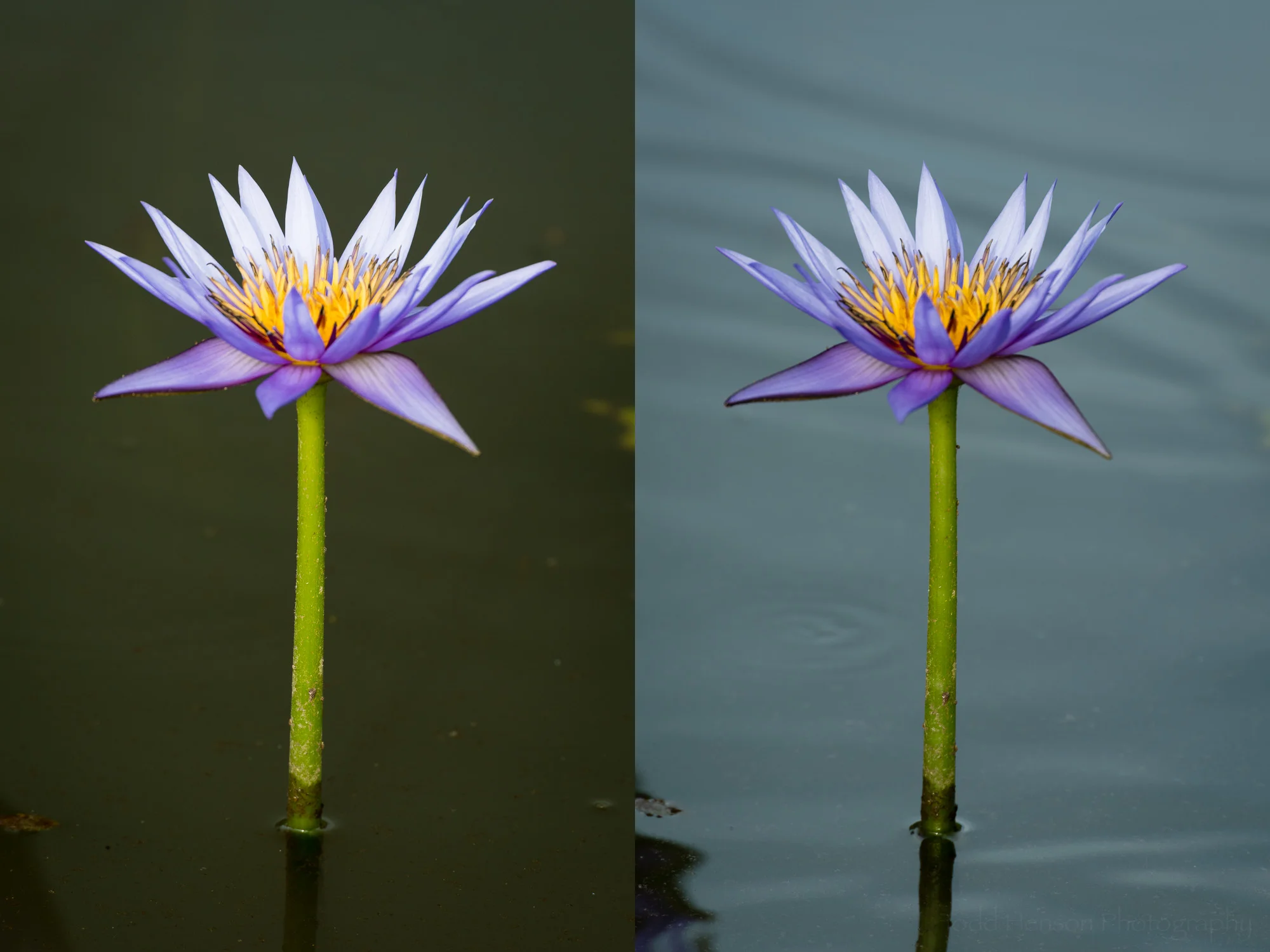
Hypnotic Pink by Todd Henson

All Aboard the Audiobook Bus by Todd Henson

I’ve slowly found myself listening to more and more audiobooks. I’d been leery of them originally. And when I finally did try them I wasn’t sure about some of the fiction books, where a single narrator tried to create unique voices for each character, so I started out with non-fiction books where a narrator would simply read the book. That worked really well for me. But the more I listened the more I got used to, and started really enjoying, listening to fiction books in audio form. Not all work for me, there are some voices I just don’t want to listen to, at least not for the length of an entire book. But being able to sample the book before buying I’m finding myself happily purchasing books that I end up very much enjoying, and this lets me read when I might not otherwise be able to.

In the beginning I was listening to books from Audible as I didn’t know any other source of audiobooks. And I’d only buy them when on sale. The full price when not a member was too high, and at the time I wasn’t interested in becoming a monthly-paying member. At some point I stopped seeing books for sale to non-monthly subscribers, so I stopped buying audiobooks.

LibriVox.org

A selection of the audiobooks I’ve listened to from Librivox.org

A selection of the audiobooks I’ve listened to from Librivox.org

Then I discovered LibriVox, a great source for audiobooks of older works. The books are those old enough they’re in the public domain in the USA. They are narrated by volunteers, sometimes by a single narrator and sometimes by a group. Some books have different narrators for different chapters, while others use different narrators for different characters. Being volunteers, the quality of narration does vary, but because they are all free there’s nothing to lose trying a book. If you don’t like it then move on to the next one. I’ve found some narrators I really enjoy and have read (listened to) some great classic works. You don’t need to sign up for anything to use them, just visit their site, search for a book, then download and load it into your audio software of choice. I most often download books in the M4B audiobook format and load them into my Books app on my computer and phone.

Libro.fm

A selection of  the audiobooks I’ve purchased through Libro.fm

A selection of the audiobooks I’ve purchased through Libro.fm

More recently I’ve found a source for newer audiobooks, including current best sellers: Libro.fm, a company headquartered in Seattle, Washington. They have some of the same audiobooks you’ll find on Audible. But the biggest thing they have going for them, in my mind, is how they’ve teamed up with many independent and local bookstores. I searched their list of affiliated bookstores, found one near me, and chose that as the bookstore I’d support. A percentage of each audiobook I purchase goes to my chosen independent bookstore. And if that weren’t enough, the books offered through Libro.fm are DRM-free. I’ve never cared for DRM encumbered digital products. We didn’t always have a choice; there were times when most everything out there had DRM. But then companies started dropping DRM from music. And later some book publishers dropped it from their ebooks. Now you can purchase DRM-free audiobooks, letting you listen on the apps and devices you want.

I started using Libro.fm by browsing through the titles they currently had on sale. Each month they appear to pick a large selection of books and offer them as some great discounts. You don’t need to sign up for their monthly membership to purchase these, though if you do they even discount the already discounted price. But I wasn’t initially sure I wanted a monthly subscription so I just created a free account and bought books piecemeal.

After purchasing and listening to several books I decided I liked the service enough to sign up for their monthly membership plan. At the time I signed up they offered the first audiobook free, after which I pay $14.99 per month for 1 book credit, which lets me purchase almost any audiobook, rolls over from month to month, and doesn’t expire. Considering many long audiobooks are over $30 or $40, this is a great price and very close to that of Audible. I have found there are a very small number of books they can’t offer as part of their monthly membership because of publisher restrictions, but these they usually offer at discounted prices to make up for that. And in addition to the book a month I can also purchase any other book at a discount, currently 30% off.

Libro.fm has an app you can load on your phone, or you can use most any other audio application to listen on your computer or device, if you prefer. Personally, I download the audio files (usually mp3 and sometimes m4b) and load them into the Books app on my computer and phone. But most folks will probably use the Libro.fm phone apps.

If you decide to sign up I’d appreciate it if you use my referral link for Libro.fm. That lets me get a free book if you sign up as a paying member of their service. But even if you decide not to, I recommend checking out both LibriVox and Libro.fm if you’re interested in audiobooks. Both offer DRM-free books, LibriVox books are free, and Libro.fm helps support local independent bookstores.

Happy reading (or listening)!

Do you enjoy these posts?

Sign up to receive periodic emails with updates and thoughts. Don’t worry, I won’t spam you. And please consider purchasing artwork or products from my online store, and using my affiliate links in the sidebar to the right when shopping online.

I appreciate your support!


Color Correction When White Balance Isn’t Enough by Todd Henson

One of the first steps in getting accurate colors in your photographs is properly adjusting the white balance. To help, cameras and software come with a range of predefined white balance settings. These will often get us close enough. You can usually also manually choose white balance settings, choosing a specific kelvin temperature value. And cameras come with an auto white balance feature where the camera does the best it can at choosing an appropriate white balance for you.

But there are times when you must have accurate colors and setting the white balance doesn’t get you there. Each camera is a little different. And each model of camera sensor has its own color-related quirks, just as film does. Some cameras have a very hard time accurately recording specific shades of blue or violet. In this post we’ll take a look at two methods of addressing this in an attempt to make our colors as accurate as possible.

White Balance Examples

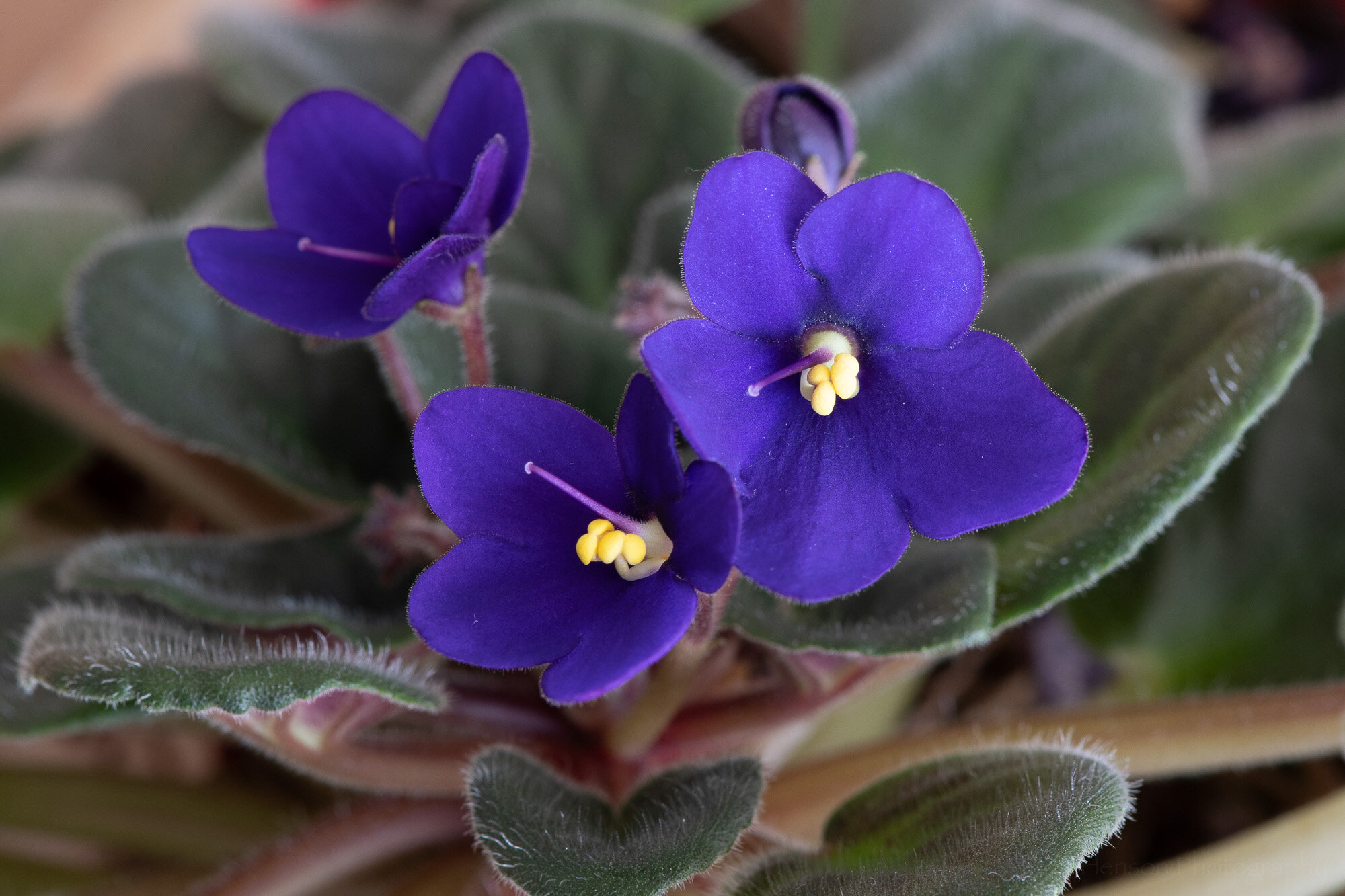
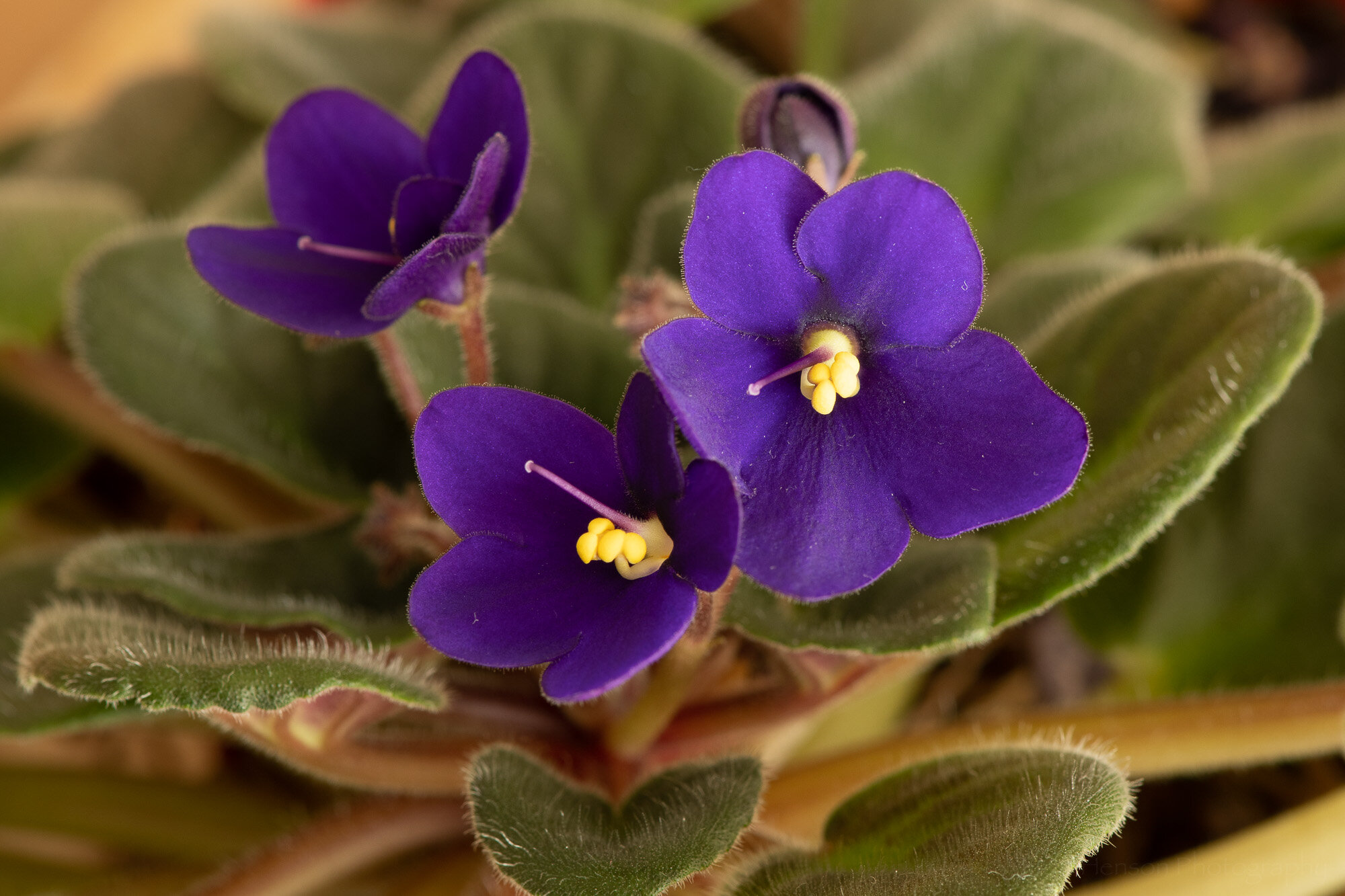
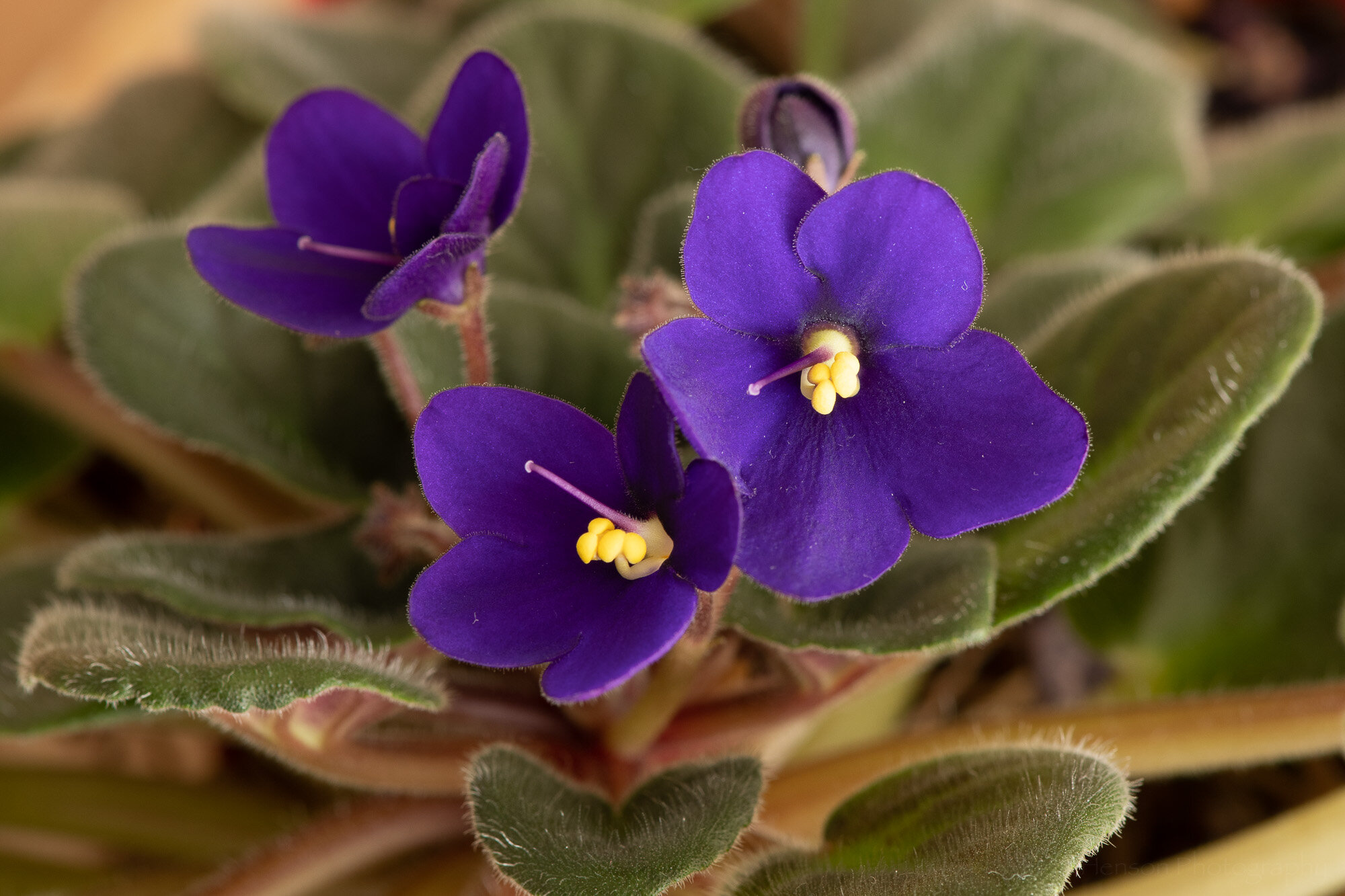
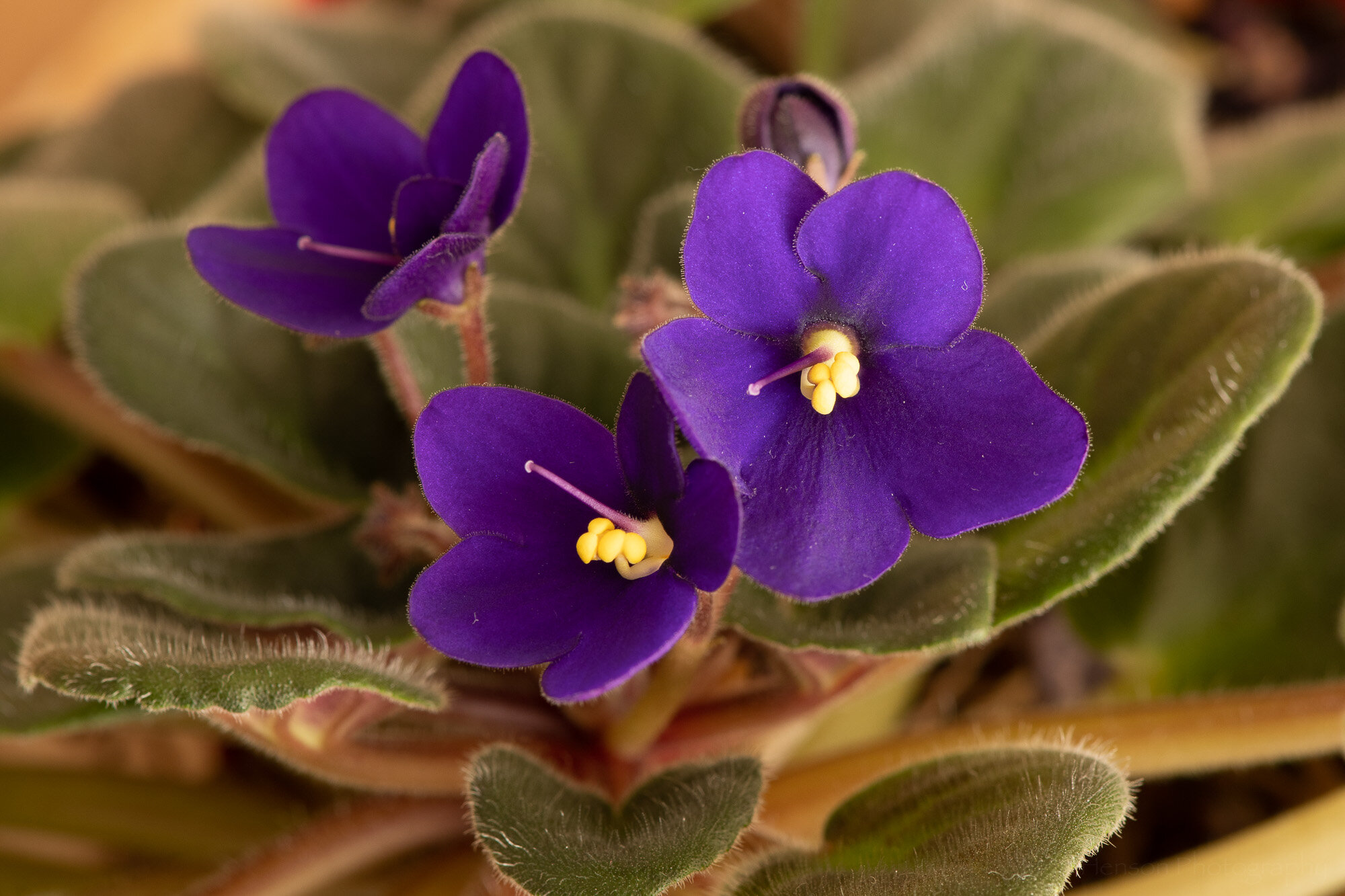
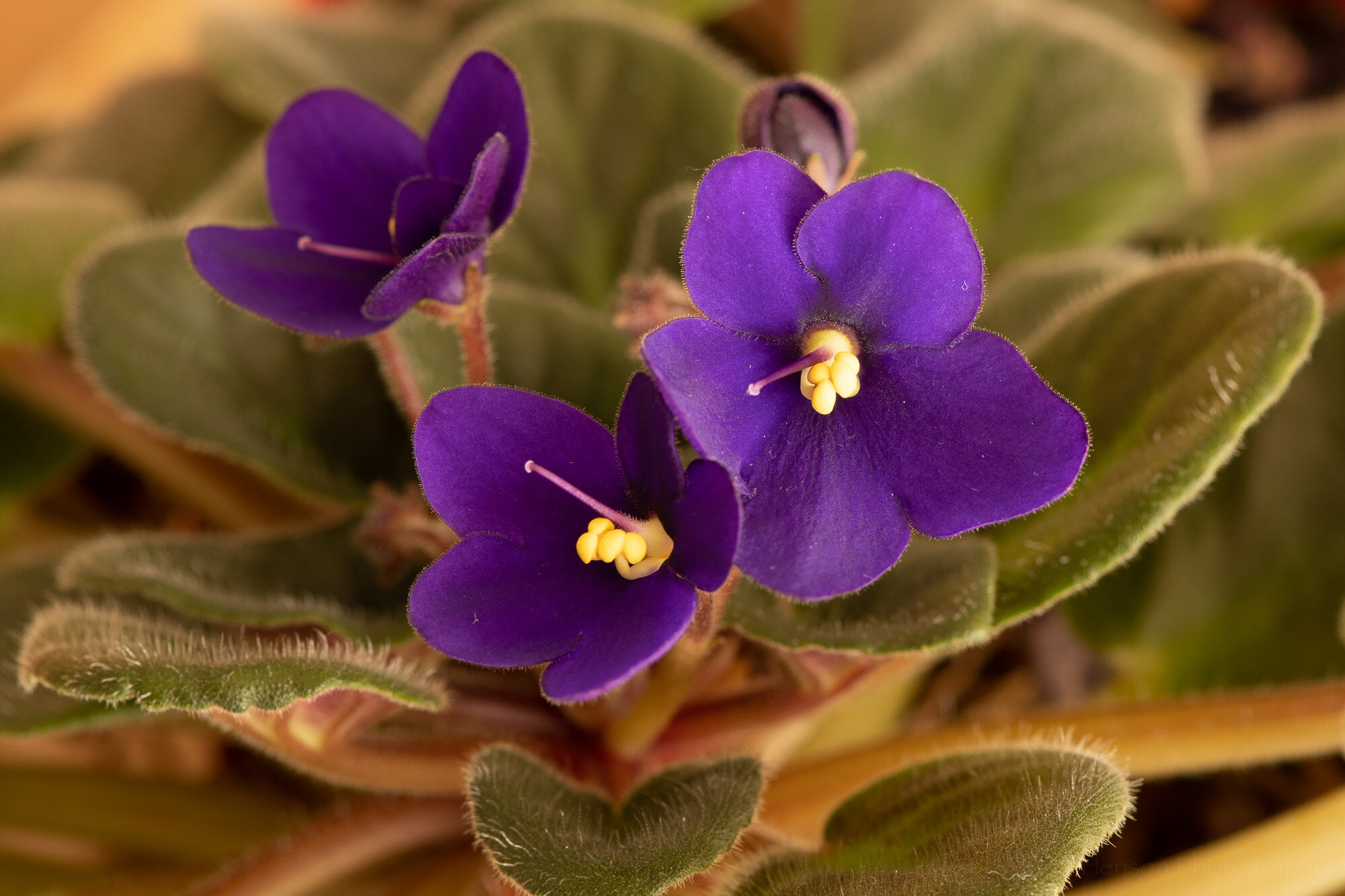
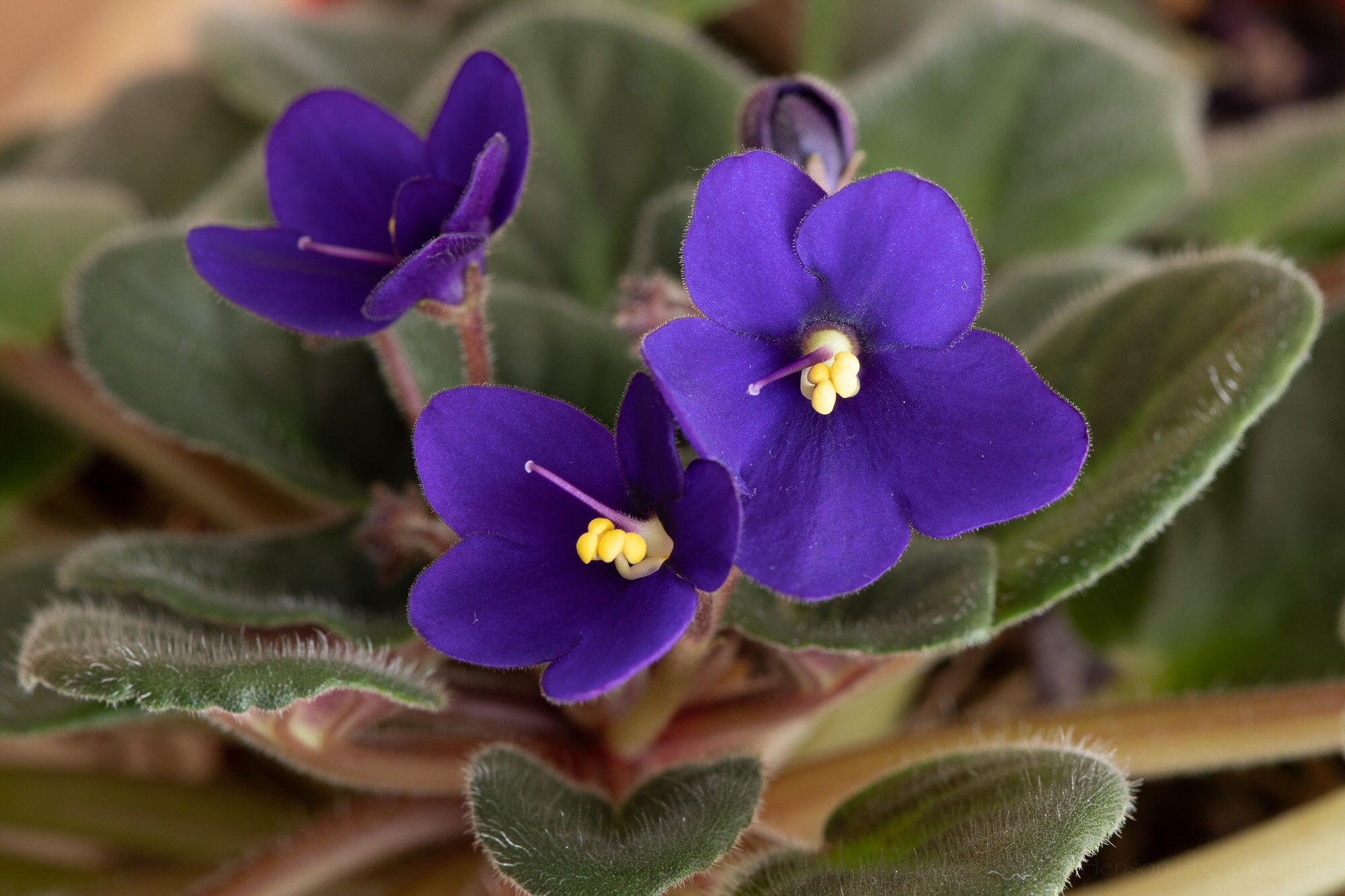
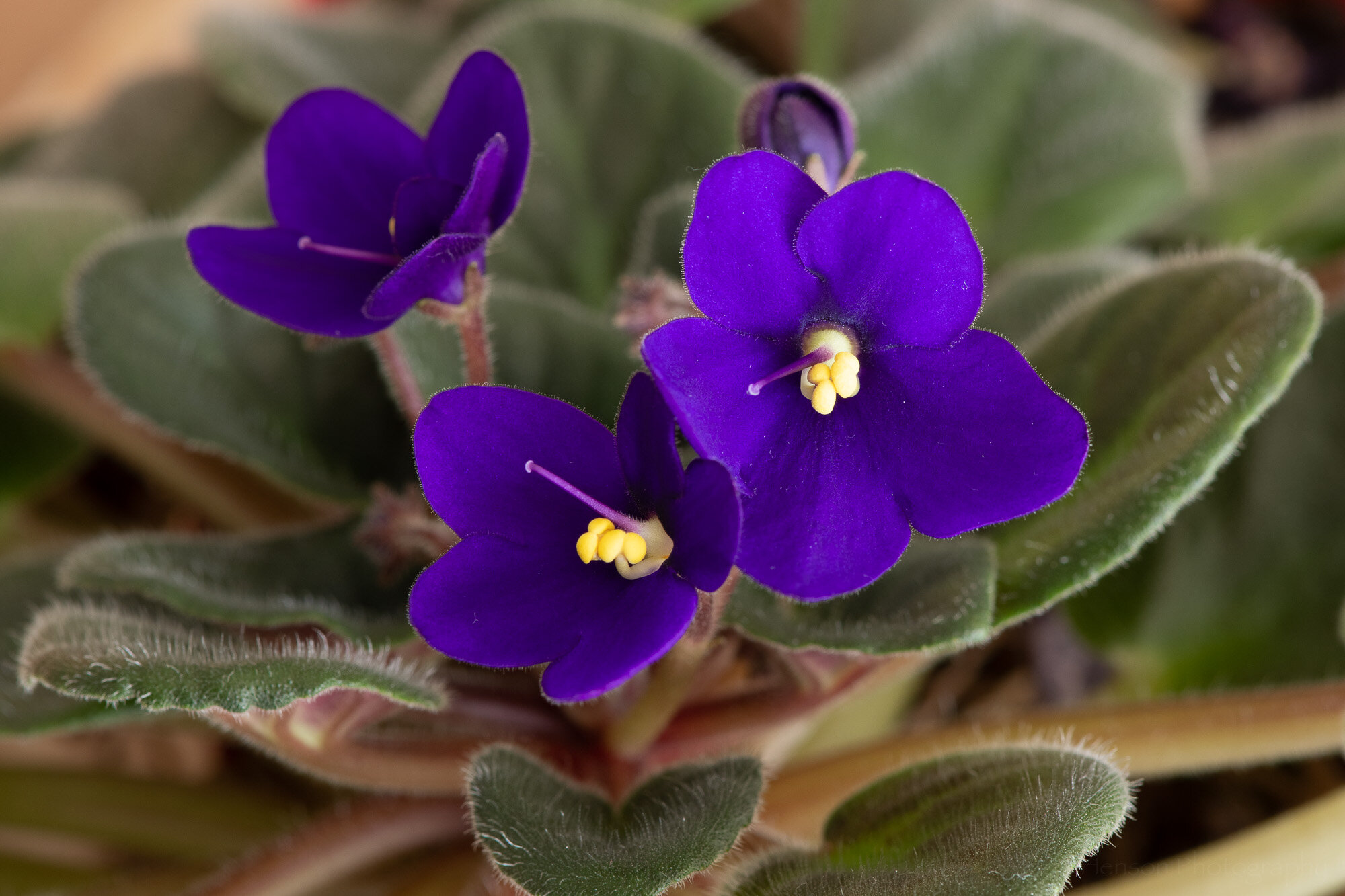
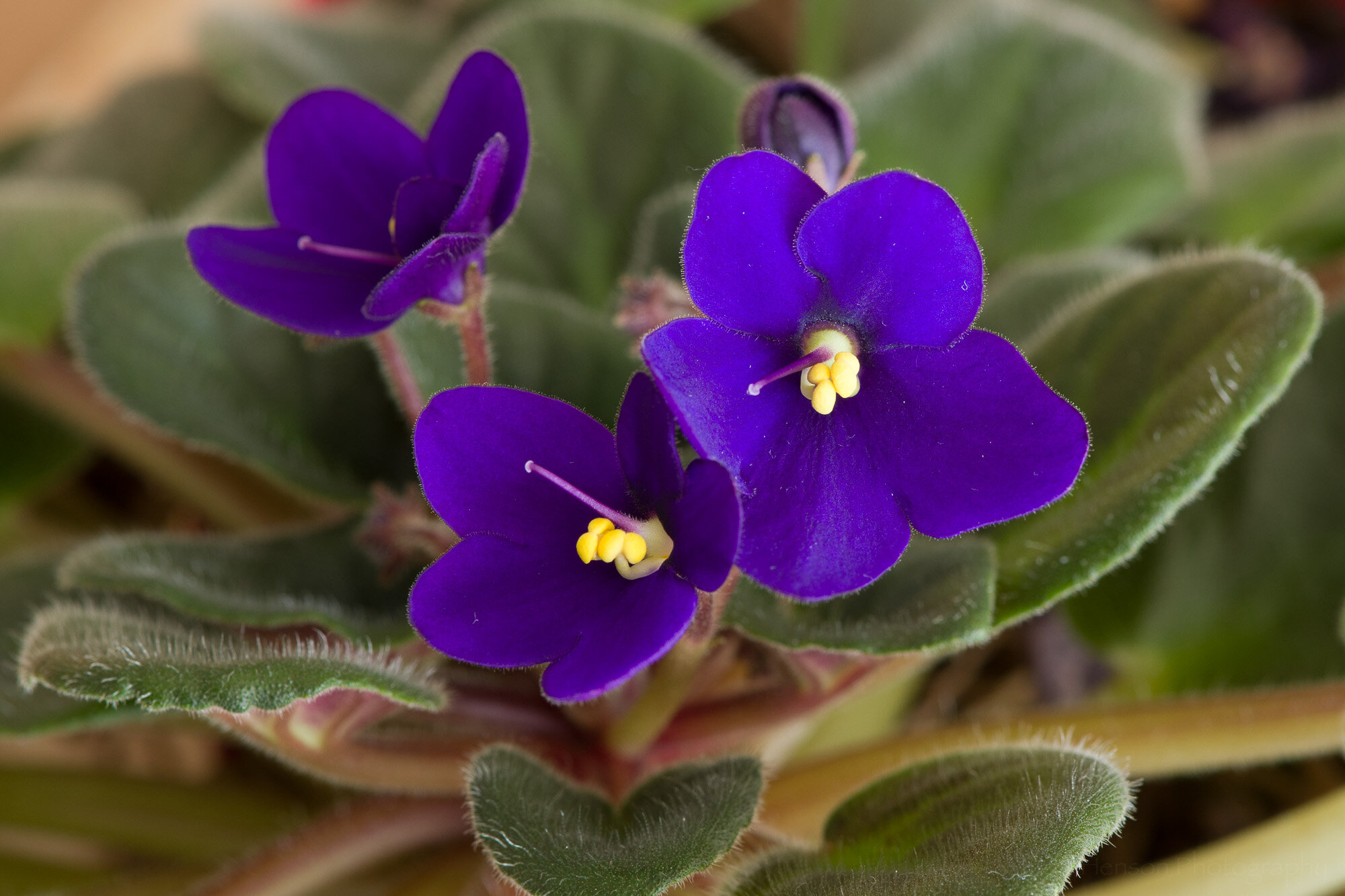
First off we’ll take a look at some different white balance settings and how they affect the look of the subject. In this case I photographed an African violet on a table with diffused light entering from a window to the right. Below are two examples of different white balance settings out of the camera. Which specific settings they are isn’t important, just that you notice how very different the colors look when choosing different white balance settings.

Click on the image to cycle between the two examples, and notice their change in color:

If you shoot in raw mode you can change white balance in software. This is a fantastic feature as it lets you deal with any issues after the fact. Let’s face it, we’re not always able to get everything right in camera, as much as we might try. Below are examples of how the photo looks when choosing the daylight, cloudy and shade white balance settings in software (Adobe Lightroom).

Click on the photo to cycle between examples, and compare the colors between each image:

One good way to get accurate white balance is to shoot a grey card in the same light as your subject. Then in software you can use the eye dropper tool to set the white balance using the grey card. In my case I used the grey squares of my X-Rite ColorChecker Classic card. Below is an example of how the photo looks when I set the white balance using the grey square. This is the most accurate white balance I could achieve. But the colors aren’t quite right.

White balance was chosen using a grey card.

Manual Color Correction

So we’ve correctly set the white balance setting to get the best colors we can. But the colors still aren’t quite right. What do we do? One method is to manually adjust the color settings in software using your knowledge of what the colors should look like, or using a color reference such as the ColorChecker card. This can be a time consuming (and frustrating) process, and one that’s affected by your perceptions of color which may differ from someone else’s.

Below is an example of the African violet where I manually adjusted the Hue/Saturation/Luminance (HSL) settings in Lightroom. You can see I adjusted the blue and purple hue and saturation, and the blue luminance. This gave a result I feel is very close to truth. It took time, and as I said is open to problems related to my perception of color. But this is one way to get more accurate color.

The color were manually corrected in this photo.

The color settings used.

Color Correction Using ColorChecker Custom Profiles

Perhaps a better way to get more accurate color is to color calibrate your camera. How do you do that? Well, you don’t actually do anything in the camera. Instead you photograph a special color card, such as the ColorChecker mentioned above, in the same light as your subject. You then copy your photos to your computer and use software to create a custom color correction profile based on the photo of the color card. The software knows exactly what colors are on the card, and it can see how those colors look out of your camera. This lets the software know what colors your camera has problems with and it can create a profile to correct those problems. Then you simple apply that profile to your photos and they will have the most accurate color you will likely get.

To perform this calibration I used my X-Rite ColorChecker Classic card, which happened to come with my ColorMunki Photo screen/printer calibration device. But you can also purchase various versions of the ColorChecker card. The ColorChecker Camera Calibration software is a free download from X-Rite (look under the Support tab). It comes with a standalone application you can use, as well as a convenient Adobe Lightroom plugin which I used.

To create the calibration profile you select the photo that contains the ColorChecker card. In my case I zoomed right in on the card, but you don’t need to do this. I also tested setting the card against the subject and photographing it that way and the software was able to detect the card. Don’t let it get too small, though, or there won’t be enough pixels of each color for the software to work.

After you select the photo of the ColorChecker you export it using the ColorChecker Camera Calibration preset, which was loaded into Lightroom when you installed the X-Rite software. You will be asked for a name for the new color correction profile. The software will then process the colors and create and save a profile. You’ll need to restart Lightroom to get access to the new profile.

Select the photo of the ColorChecker card, choose Export, and select ColorChecker Camera Calibration.

After you restart Lightroom you can use the profile by picking a photo you want to apply the profile to. Then switch to the Develop module. Near the top, under the Basic settings, you’ll see a Profile listed. Click on the profile and you’ll see a dropdown menu. Select the Browse option to see all available profiles.

Click on the Profile settings to see the drop-down menu. Choose Browse.

The Profile Browser will load. It contains a large number of pre-built profiles, as well as any custom ones you’ve created. In my case the custom profiles were at the bottom, so scroll down.

After clicking Browse you’ll see the Profile Browser, which shows a large number of available profiles.

After scrolling down I found my new custom profile under the Profiles list. It was the only profile in the list because it was the first custom profile I’d created.

I found my new custom profile listed near the bottom, under Profiles.

Click on the custom profile and it will take effect on the photo. Notice in the example how different the colors look after I selected the profile.

Click on the new custom profile and you’ll immediately see the effects in the photo.

Click on the photos below to flip between the white balance corrected, manually color corrected, and custom ColorChecker profile corrected versions of the photo. Notice the differences in color.

Before/After Examples of Color Correction

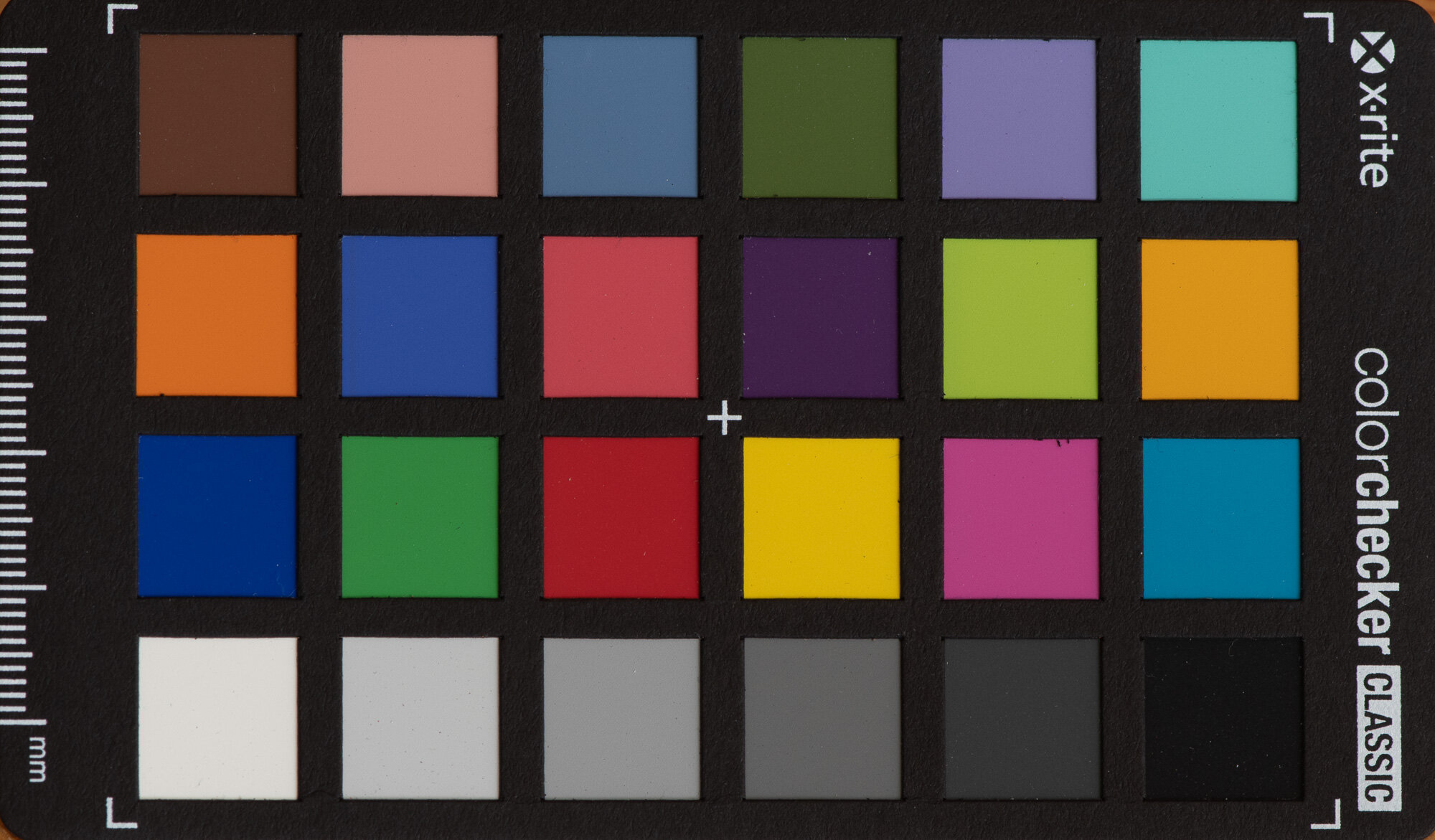
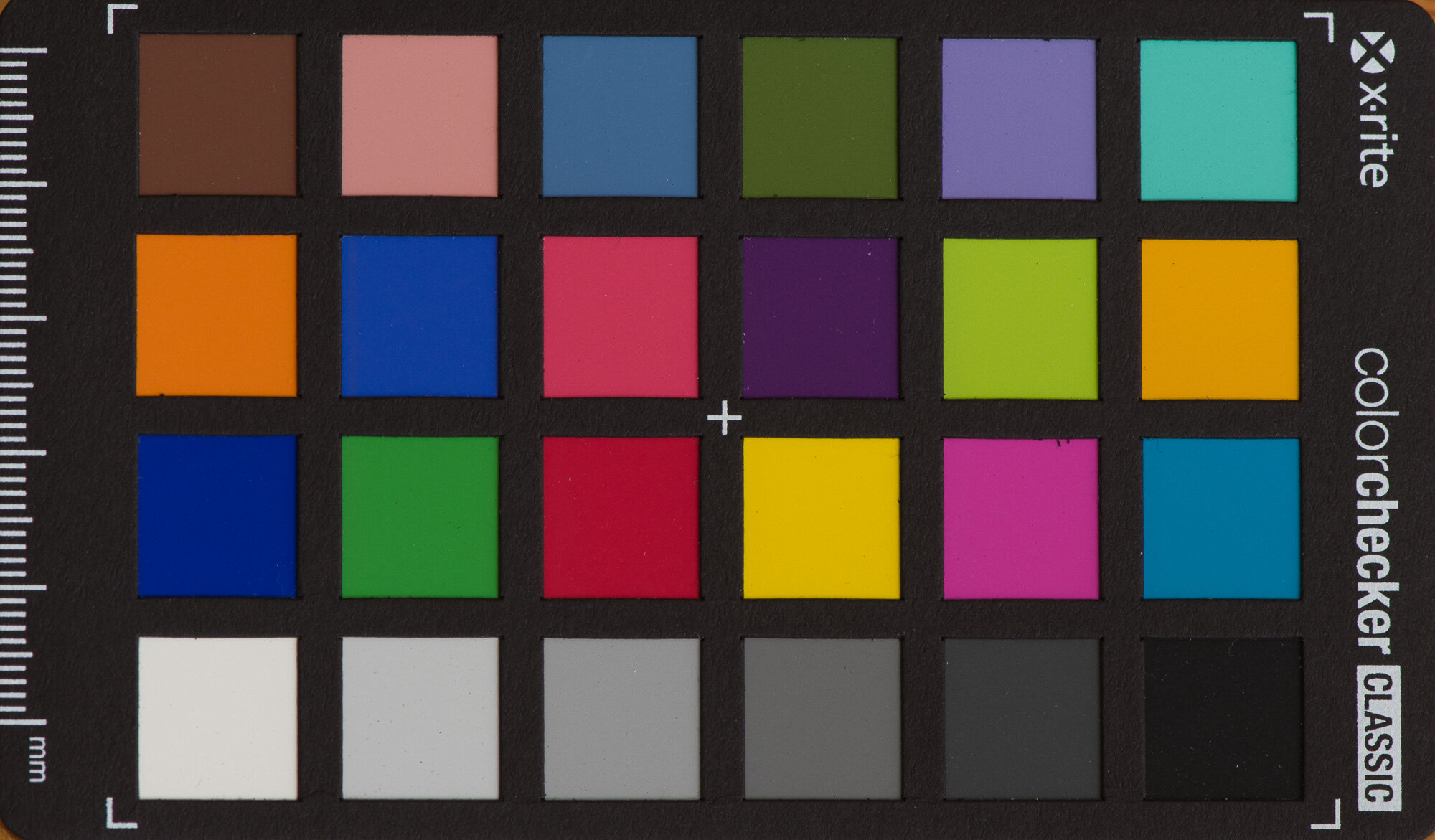
Here are some additional before and after examples of color correction using custom ColorChecker profiles. The first example is of the ColorChecker Classic card. You can see which colors my camera has issues with. Some of the differences can be subtle.

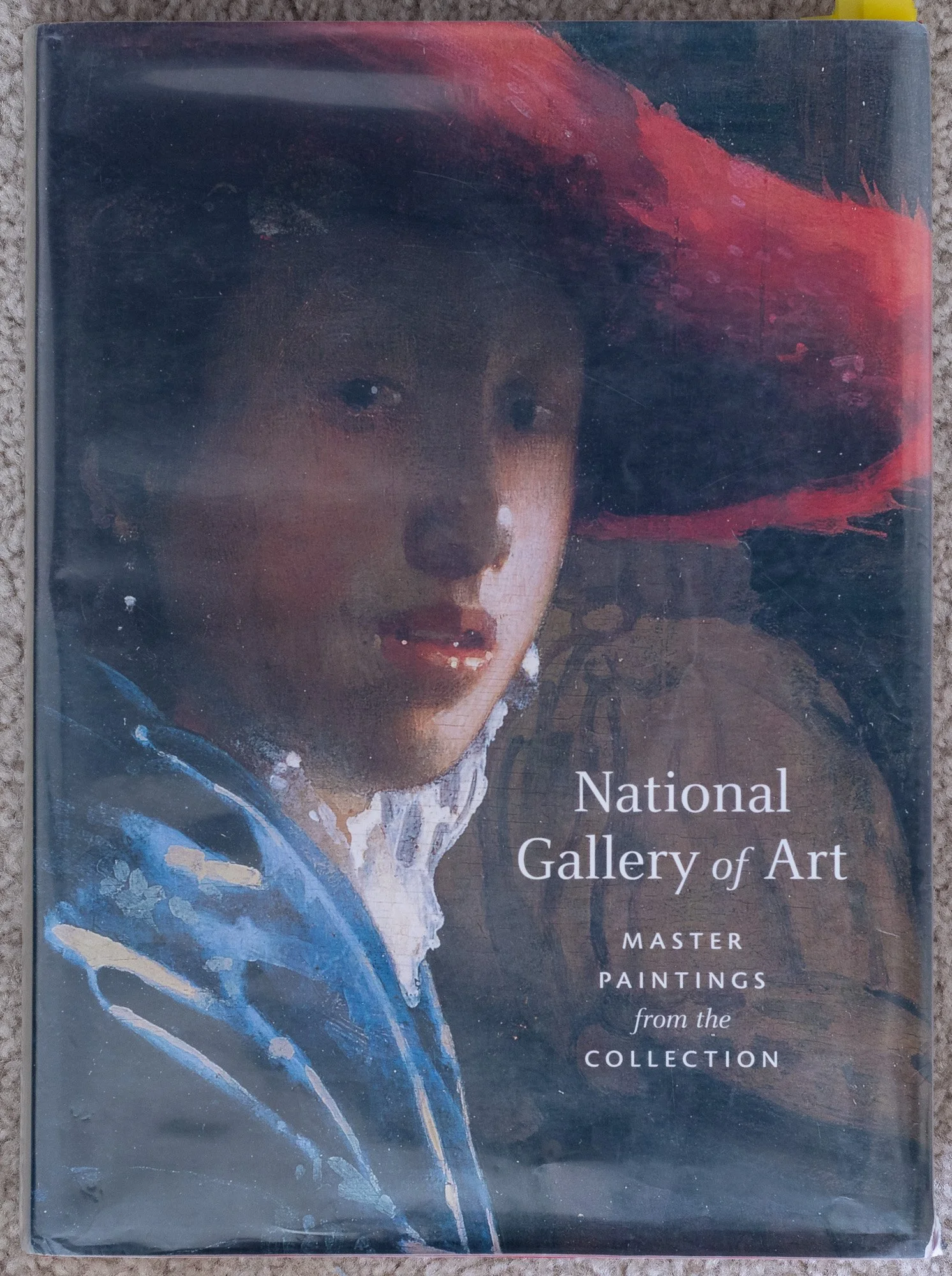
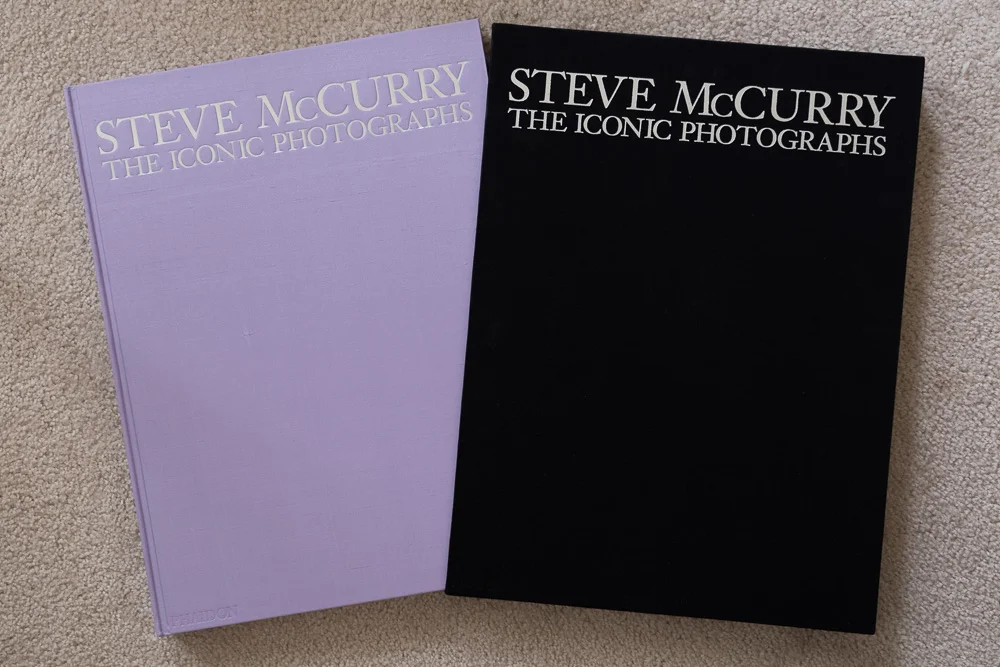
Below are two examples of books. In each case the upper part of the image is before color correction and the lower part is after color correction. Again, differences can be subtle. But if you look closely at some of the blues you’ll see different shades of blue before and after. Also look closely at the right most pink book in the yellow/orange/red photo. In the uncorrected it simply looks pink, but in the corrected version it’s more of a hot pink like the real book is. Look at the orange/red near the center and you may see subtle differences in shades.

Before/after shades of green, blue, and violet.

Before/after shades of green, yellow, orange, and red.

Conclusion

I’ll be honest, I don’t often have need of absolutely correct color. Most of my work is intended as artwork where color choice is a creative decision. Other times I’m documenting wildlife and I can usually get close enough by adjusting white balance. But for some photographers color is critically important. An example of this are advertising photographers who must be sure their photographs of client products correctly match the company’s chosen colors. If they get the colors wrong the client won’t be happy. So using techniques like those above can help these photographers assure they create photographs with accurate colors.


Do you enjoy these posts?

Sign up to receive periodic emails with updates and thoughts. Don’t worry, I won’t spam you. And please consider purchasing artwork or products from my online store, and using my affiliate links in the sidebar to the right when shopping online.

I appreciate your support!