Trip Report

Foggy Views From Cadillac Mountain in Acadia National Park, Maine by Todd Henson

Couple on Cadillac Mountain facing cruise ship in foggy Gulf of Maine

During my vacation in Maine we visited Acadia National Park several times, and drove to the top of Cadillac Mountain twice. Our first day began engulfed in fog. We drove to the top of Cadillac Mountain, not knowing if perhaps we’d rise above the fog. We reached the summit and found no end to it, a thick blanket of white across the entire sky.

"Islands Galore!" from Cadillac Mountain with view of nothing but fog

Hiking the trails and seeing the signs describing the amazing view from the mountain was a bit of a surreal experience. One sign proclaimed, “Islands Galore!” and showed a view from that location of the many islands in the Gulf of Maine, and yet our view was of the trail, rocks, a few trees and shrubs, and a wall of white. But even in the fog, Cadillac Mountain was a beautiful place, and perhaps much more peaceful than on a clear day. There were far fewer people around, and the fog made it seem there were even fewer. I found it fascinating how the fog moved in and out, how one area that began to clear would fog up again just moments later.

"From Shores to Summits" view of fog from Cadillac Mountain

"From Sea to Shining Stars" view of fog from Cadillac Mountain

At one point there was a larger break in the fog, showing the area around Bar Harbor. We found and followed a trail I thought might provide a view of the scene, but not too far in the fog closed back in, engulfing everything. Along the trail was a sign for a hawk watch. There were two park rangers with posters of the various types of hawks that sometimes frequent that area. Of course, there were no hawks to be seen with fog like this. The scene I was looking for had disappeared before we found any vantage with a view of the gulf, so we wandered back to the car and went on to other sights.

Foggy slope on Cadillac Mountain

Interesting granite surfaces in the fog on Cadillac Mountain

The following day we tried again, heading up to Cadillac Mountain first thing. On the drive in we passed through more fog. Would today be another day with views of nothing but fog? Perhaps. But there was only one way to know for sure. Driving up the mountain we eventually rose out of the fog. Hiking the same trails as the day before revealed a completely different landscape. This morning we had views of the entire mountain and some of the islands in the gulf enveloped in a layer of fog resting on the water. It was a beautiful sight. Even more amazing was seeing one of the cruise ships anchored in the fog. Strange sight. In two of the photos you can see not only the cruise ship, but also some of the buildings of Bar Harbor towards the left.

View from Cadillac Mountain of Bar Harbor and cruise ship in Gulf of Maine

Granite top of Cadillac Mountain with view of Bar Harbor and cruise ship

My favorite photo is the one I captured of two people standing on the rocks gazing out over the gulf, with the cruise ship anchored below. I had been photographing the cruise ship when I noticed the pair hiking over the rocks. I waited for them to get high enough, then framed the shot with them and the cruise ship.

Couple on Cadillac Mountain facing cruise ship in foggy Gulf of Maine

About an hour later we found a trail behind the small gift store, which we’d overlooked the day before. The trail led up to another nice view where I created a multi-image panorama. The group of people on the left are at the top of Cadillac Mountain by the signs I had photographed in the fog the day before. Some of the islands can be seen in the distance with clouds and fog surrounding them. The light becomes a little harsh towards the right, which was the direction of the sun.

Panorama of Cadillac Mountain overlooking the Gulf of Maine

The weather can change quickly and it can sometimes be difficult to plan ahead too far. For this trip we were very flexible, taking what nature gave us. I really enjoyed it. There was no stress around the need to be somewhere at a particular time. The entire location was new to us, so each area we ventured to had something new and interesting to see. Acadia National Park is an absolutely beautiful location, well worth visiting. I would love to go back, finding different areas, or just revisiting some of the same areas at different times, in different weather. I highly recommend this park.


Panorama of Cruise Ships at Bar Harbor, Maine by Todd Henson

Final stitched panorama showing 3 cruise ships docked at Bar Harbor, Maine, in stormy weather.

The Story

Bar Harbor, Maine, is a popular tourist destination both by land and by sea. On one of the days my father and I spent in the area we saw three cruise ships docked at Bar Harbor. The day had been very drizzly, with clouds at low elevations, low enough they completely engulfed Cadillac Mountain. An overlook on one of the park roads offered a great view of all three cruise ships with parts of Bar Harbor peeking through the tops of the trees. Various islands could be seen further out and the clouds completely filled the sky.

It was a beautiful scene, and I wanted to capture as much of it as possible. The first images I created were with a wide angle lens, trying to get everything in. But then I had the idea to create a multi-image stitched panorama to capture more detail. Rain was moving back in, the winds were picking up, and fog was quickly coming in from the left, so I had to work quickly. I setup the tripod and fired off the shots. In the end I had 13 images to work with. I would later use Lightroom to stitch these together into the final panoramic image.

The final image has been scaled down in size to allow it to load quickly on the website, so it’s hard to appreciate the detail within it. Below, I’ve split the image into three to make it easier to see some of the details. I did have to crop in a little from the full image to split it into three without cutting into the middle cruise ship. Click on each of the three images to see a larger version of each.

The Technique

I set up my tripod, put the 70-200mm lens on my camera and positioned it vertically, set the focal length to 78 mm, and put everything into manual mode. This included setting the white balance (not in auto mode), setting the aperture, shutter speed, ISO, everything. This is done to assure the camera doesn’t change anything that will affect exposure from one image to the next. If the exposure changes between images then we won’t be able to cleanly merge them in software.

My tripod has a bubble level on the collar, where the tripod head mounts. I made sure that was level. This assured the base of the tripod was level and would help me create a level and even panorama. I also put a double axis bubble level on the camera's hot shoe. I used this to assure the camera was level. I was using a ball head, so it would be easy for the camera to not be level even though the base of the tripod was. I tightened the ball head, but loosened the panning base to allow me to rotate the camera left and right, keeping it level. Once I had everything level it was time to shoot.

One of the many tips I’ve picked up from others is to start and end a sequence of images that will all be used together, either for panoramas or HDR, with a photo of my hand. This way I know where the sequence starts and where it ends, making it much easier to pick out the images in Lightroom. I also try to shoot more than I think I’ll need to give me plenty of room to crop if needed, something that is almost always necessary with stitched panoramas.

I started from the left side and created the first image in the sequence. Then I panned the tripod head to the right. I made sure to have plenty of overlap between the first and second images to give the software enough information to line up the images correctly. I continued this process, creating an image, then panning between 1/3 to 2/3 of an image to the right, then creating the next image. In the end I used 13 of the images to stitch the final panorama. This created an image close to 80 megapixels in size using a 12.3 megapixel camera.

The Post-Processing

Post-processing the 13 raw images into the final panorama was actually very easy. In the past Lightroom needed to export the images to Photoshop to merge them. But the process is much simpler now that Lightroom has the ability to merge panoramas itself. You can still use Photoshop for more complicated or troublesome panoramas.

Step 1: Select All The Images

Step 1: Select all the images

The first step is selecting all the images in Lightroom that will be part of the panorama. This step shows nicely how I overlapped each photo, creating plenty of duplicate content that Lightroom used to properly stitch them all together.

Step 2: Click Photo Merge, Then Panorama

Step 2: Click Photo Merge, then Panorama

After all the images are selected, right click, then click on Photo Merge and select Panorama.

Step 3: Panorama Merge Preview

Step 3: Panorama Merge Preview

A window titled Panorama Merge Preview will pop up. It may take Lightroom a little time to create a preview of the panorama, depending on how many images you have and how large they are. You can see on the right of the window Auto Select Projection is checked, as is Auto Crop.

Step 4: Projections and Cropping

Step 4: Projections and Cropping

Once the preview is created you can try manually switching between the different projections to see if one does a better job than another, but in most cases Lightroom should be able to choose the best one automatically. You can also try checking and unchecking the Auto Crop box to see how well the images were stitched together.

Step 5: Click Merge

Step 5: Click Merge

I unchecked the Auto Crop box so you can see the difference. There isn’t much difference in this case, which is great. It means I did a good job of creating images with little distortion and I kept everything very level. You can see a little on the lower right and the upper left that gets cropped. If you prefer, you can use the Boundary Warp slider to warp the image to fill it all in, instead of cropping, but doing so does distort parts of the image. In some cases you won’t notice the difference, but in others the warp might be too obvious and distracting. In this case everything lined up so well I used the Auto Crop box. Click the Merge button when you’re ready for Lightroom to merge the images.

Step 6: Lightroom Creates The Panorama

Step 6: Lightroom creates the panorama

The pop up will disappear and you’ll be back in the normal Lightroom interface, but notice in the upper left corner the status bar showing it is creating the panorama.

Step 7: The Raw Stitched Panorama

Step 7: The raw stitched panorama

When Lightroom is finished it will display the final stitched panorama. Now all you need to do is apply any desired raw adjustments.

Step 8: The Final Adjustments in Lightroom

Step 8: The final adjustments in Lightroom

Here you can see my final image, after I finished adjusting the raw panorama.


Do you enjoy these posts?

Sign up to receive periodic emails with updates and thoughts. Don’t worry, I won’t spam you. And please consider purchasing artwork or products from my online store, and using my affiliate links in the sidebar to the right when shopping online.

I appreciate your support!


Rocky Shoreline of Acadia National Park by Todd Henson

My favorite image of a rocky beach in Acadia National Park, Maine

Acadia National Park, in Maine, has some absolutely beautiful coastline. Most of it is rough coastline with rocky beaches, which I much prefer over the more common sandy beaches down south. During a recent vacation my father and I explored parts of Mount Desert Island, which contains the main portion of Acadia National Park. Park Loop Road loops through a large part of the park and contains the majority of the sites most commonly seen (though there is much to be seen outside this loop). On our final day in the park we drove through the one-way portion of the loop and were favored with fantastic views of the rocky coastline extending out into the Atlantic Ocean, with some islands in the distance.

The morning had begun with light rain and some fog. We started the day with a drive towards the summit of Cadillac Mountain, but it was completely fogged in, much as it had been the very first day we drove up there. So we turned around, went back down the mountain out of the fog, and took the one-way portion of Park Loop Road. I’m glad we did.

The Panoramic View

We found a location with a small pull out on the side of the road. It was a small enough location they hadn’t put in a full parking area. A trail led from the road out along the top of a cliff line that ran above a small inlet and rocky beach. It was a fantastic view with several places to photograph from. At one of the views I created a series of images, holding the camera vertically and rotating the camera a little between each frame, knowing I’d merge these into a multi-image stitched panorama when I got home. The final image was created from 8 individual vertical frames.

Little Hunters Beach Panorama in Acadia National Park

Little Hunters Beach Panorama is available for purchase as a print or on a variety of products.

Down to the Rocky Beach

A wooden stairway led from the road down to the rocky beach. There were still storm clouds around from the earlier rain, and the tide was slowly coming in, moving up the beach. I decided this inlet would be perfect to try some long exposure images of the water lapping at the rocky beach. The lack of parking kept the crowds down and I had the entire beach to myself for the majority of the time.

I tried two different compositions, one facing the shoreline and cliffs to the left, where I’d created the panoramic image, and one facing the shoreline to the right. I processed each differently, tweaking the white balance just slightly to give each a different mood.

For the first composition I faced towards the right, including part of the rocky beach and the right edge of the inlet. I used an aperture of f/22 for a large depth of field and a slower shutter speed, and put on a 10 stop neutral density filter, allowing me to hold the shutter open for 70 seconds. This turned the water into a milky mist. In post-production I lowered the color temperature, which shifted the white balance towards the blue end of the spectrum. This gives the image a colder feel.

Long exposure (70 sec) of right side of inlet taken from rocky beach, cooler tones

For the second composition I faced towards the left, including part of the rocky beach and the left edge of the inlet. I had stood at the top of this cliff line to create the panoramic image. Once again I used an aperture of f/22 and a 10 stop neutral density filter to slow the shutter speed. This time I held the shutter open for 100 seconds. In post-production I warmed up the color temperature a little, though it’s still naturally towards the blue end, and I shifted the tint slightly towards magenta, giving a warmer feel to the image. I think this is my favorite of the two.

Long exposure (100 sec) of left side of inlet taken from rocky beach, warmer tones

Tips For Long Exposures

A tripod is critical when creating these longer exposure images. It’s also good to use a remote release if you have one. If not you can use the timer on the camera to activate the shutter. The key is not pushing the shutter button on the camera during the exposure. Anytime you touch the camera you can introduce vibrations.

To get slower shutter speeds you can use the base ISO for your camera (200 in my case) and stop down the aperture (larger f/stop numbers, f/22 in my case), but you’ll need a neutral density filter to get very long exposures. A 10 stop neutral density filter allowed me to get exposure times in the 1 to 2 minute range. You can try using a polarizer if you don’t have a neutral density filter. Depending on which polarizer you have it should slow the shutter speed down 1 to 2 stops. This may not be enough for very long exposures, but it’s a start. For more ideas about using slow shutter speeds see my post, 9 Creative Uses for Slow Shutter Speeds.


The book recommendation below contains affiliate links and I will be compensated if you make a purchase after clicking on my links. This is at no extra cost to you.

A Book Recommendation

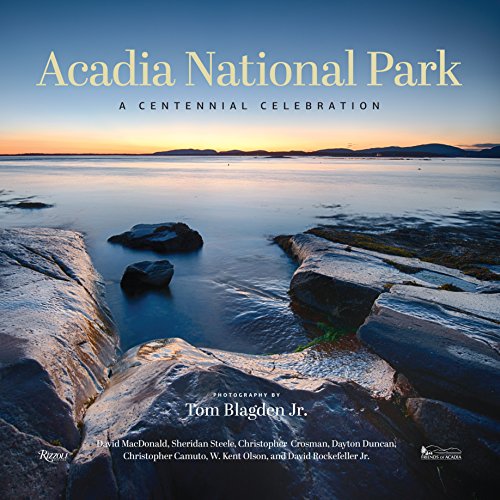
If you’d like to see more examples of the beautiful scenery all throughout Acadia National Park, check out the book, Acadia National Park: A Centennial Celebration. I picked up a copy in a small store in the town of Northeast Harbor, on Mount Desert Island. It’s a large format book, about a foot wide and tall, and around an inch thick. It contains 224 pages, most of which are filled with beautiful images from all over the park, showcasing not just the amazing landscapes, but also some of the wildlife and plant life that inhabits the park. I’m very pleased with the book.


Do you enjoy these posts?

Sign up to receive periodic emails with updates and thoughts. Don’t worry, I won’t spam you. And please consider purchasing artwork or products from my online store, and using my affiliate links in the sidebar to the right when shopping online.

I appreciate your support!